
What's there
Four templates. Find them in HubSpot under Marketing > Email > Create email > Regular.
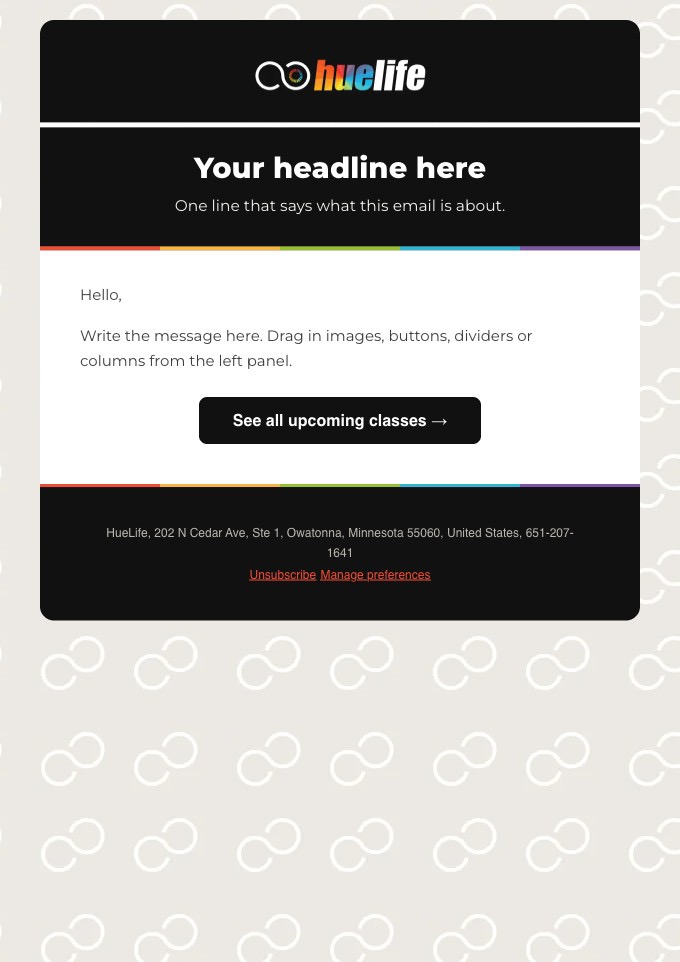
HUELIFE_STARTER_Drag-and-Drop
A blank branded email: header, one text block, a button and the footer. Drag in images, buttons, columns or dividers from the left panel. Start here for most emails.
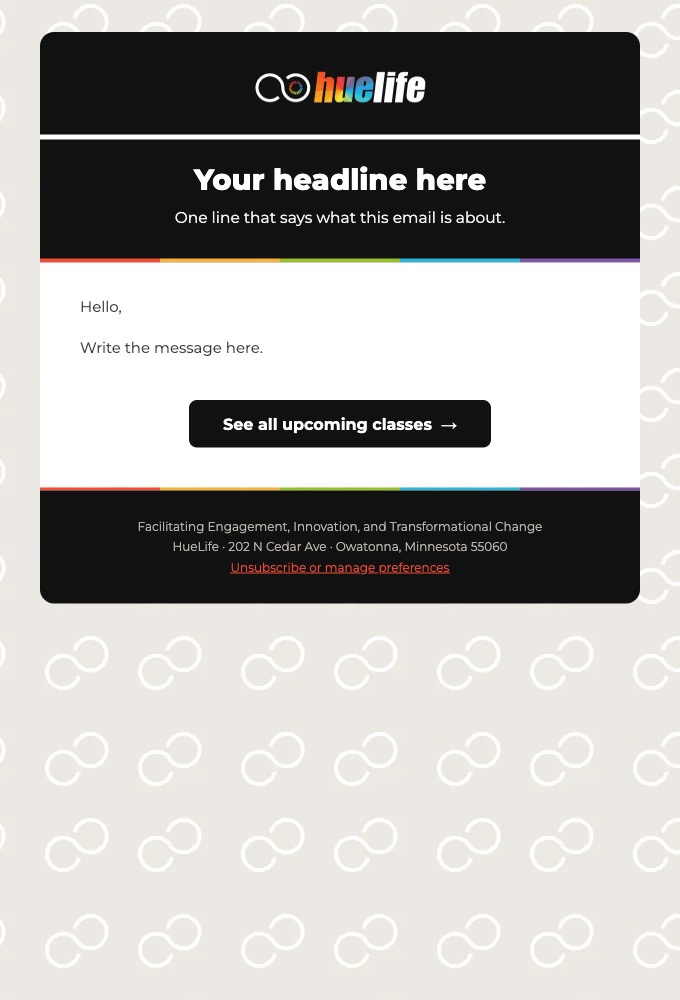
HUELIFE_STARTER_Locked-Simple
The same look with a fixed layout: headline, body and button. Good for a quick message. You can't move sections, so it always stays on brand.

HUELIFE_KIT_Components
Every branded building block in one email, each under a gray label. Open it, copy the blocks you need into your email, and delete the labels.
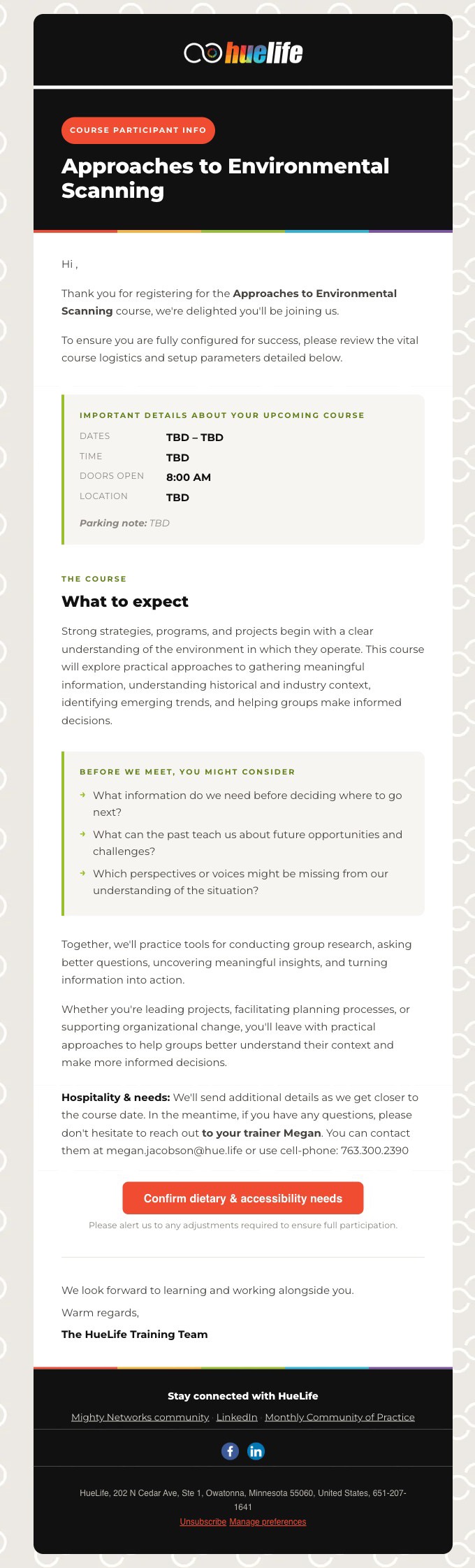
HUELIFE_COURSE_EM01_Welcome
Your Welcome email rebuilt in the new design, with your wording, links and personalization unchanged. It's a test for you to review. It isn't in use.
The building blocks
All of them are in HUELIFE_KIT_Components. Scroll the preview below.
| Block | Use it for |
|---|---|
| Title block (on black) | The top of the email: an optional chip label, the title and one supporting line |
| Body text and section heading | Your message. Headings get a small colored label above a heavy title |
| Details card | Logistics: dates, time, venue, what to bring |
| List card | Reflection questions or a checklist |
| Dark callout | One short list that must stand out, like "Come with" |
| Quote | A participant's words |
| Button, with an optional note | The one main action. Coral by default, or a program color |
| Image, and image with text | Banners and newsletter stories |
| Class block | Promoting a class, exactly like the digest: title, description, then a row of date buttons |
| Offer banner | Time-limited promotions |
| Divider, sign-off, footer | The end of every email. The footer has the stay-connected links, social icons and the unsubscribe link |
Colors
The same split the digest uses, so a reader can tell the program family at a glance.
- ToP classes (TFM, AES, TSP and others): green
- HUE classes (HCS, HIJ, HSF, retreats): purple
- Actions and general HueLife emails: coral
Start an email
- Go to Marketing > Email > Create email > Regular and pick one of the templates above.
- Edit the text and swap the images. In the editor the thin stripes collapse, which is normal. Click Preview & test to see them.
- Set the subject, preview text and recipients, preview it, then schedule.
- If you save your own template from it, name it by the email template naming rule.
Worth knowing
Course emails like Welcome and Logistics are usually saved once per class, because the class details are typed in. There is another way: one email per step that reads the class name, dates and venue from the HubSpot Course, so a single Welcome works for every class. The Community of Practice emails already work like this. It's a bigger change, so it's only an option to talk through.